
Brand your contact form, chat, and help center
On this page
Everything your customers see — your contact form, chat widget, and help center — can carry your own logo, colors, and font, so it feels like a natural part of your product rather than a bolt-on. Set it up under Settings → Branding.
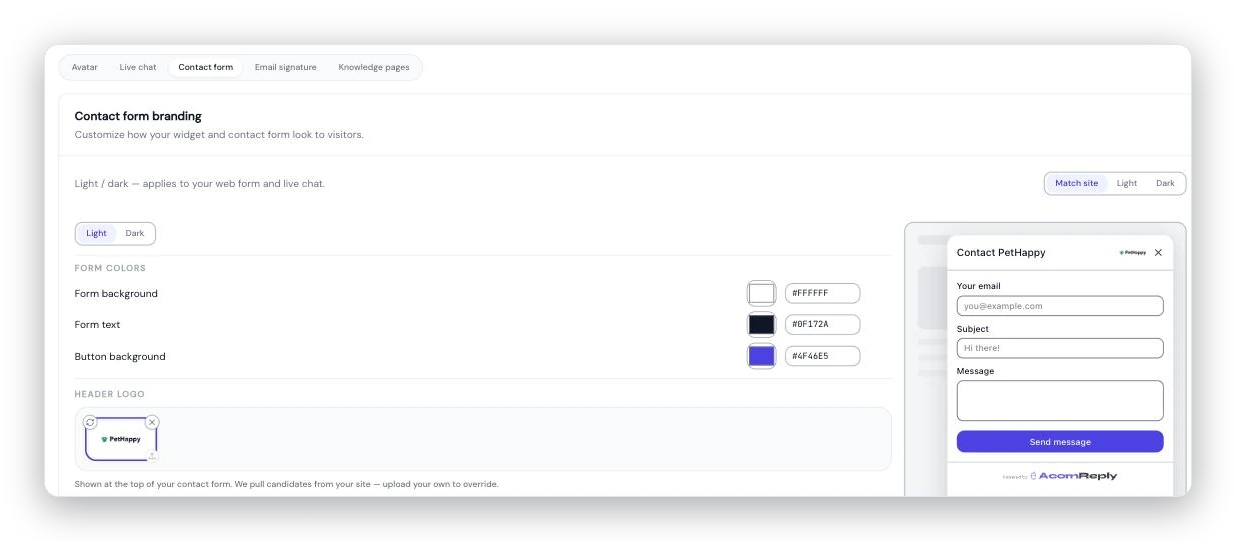
Branding controls with a live preview: set your colors and logo, and the contact form updates as you go.
Start with automatic detection
The fastest way to brand everything at once: enter your website URL and click Detect brand. AcornReply reads your site and pulls in your logo, favicon, social image, and primary color, then shows a live preview. Click Save changes to apply it, or Drop to discard and try again.
This is also offered during onboarding, so many teams are branded before they send their first reply.
Fine-tune the details
After detection, you can override any individual piece by hand — separately for light mode and dark mode:
Form background and text color
Button background
Chat bubble background and icon
Header logo
Font family
Footer — show Powered by AcornReply, swap in your own image, or hide it (depending on your plan)
Which palette a visitor sees — light or dark — follows the Match site / Light only / Dark only control on Settings → Channels. Match site follows your host site's own dark-mode toggle, or the visitor's OS preference if your site doesn't have one.
Publishing your branding
Your public form and embeds are served through a CDN and cached for speed, so a saved change won't appear instantly. Click Publish on the Branding page to push it live — this clears the cache for your workspace's URLs only, and new visitors see the new look within a few seconds.
Changed your branding but still seeing the old style? It almost always means the change was saved but not yet published. Hit Publish and give it a moment.
Your workspace avatar
The Branding page also has a workspace avatar picker. It auto-saves and appears next to the workspace name in the workspace switcher, so multi-workspace teams can tell their inboxes apart at a glance.
Your team's own faces
Separately, each teammate can set a personal avatar under Settings → Profile — it shows on assignee chips and throughout the inbox. If you signed in with Google, your Google photo is used by default until you upload your own.