
Invite your team and set roles
On this page
AcornReply is built for small teams answering customer email together. Adding teammates takes a minute, and everyone shares the same inbox so nothing falls through the cracks.
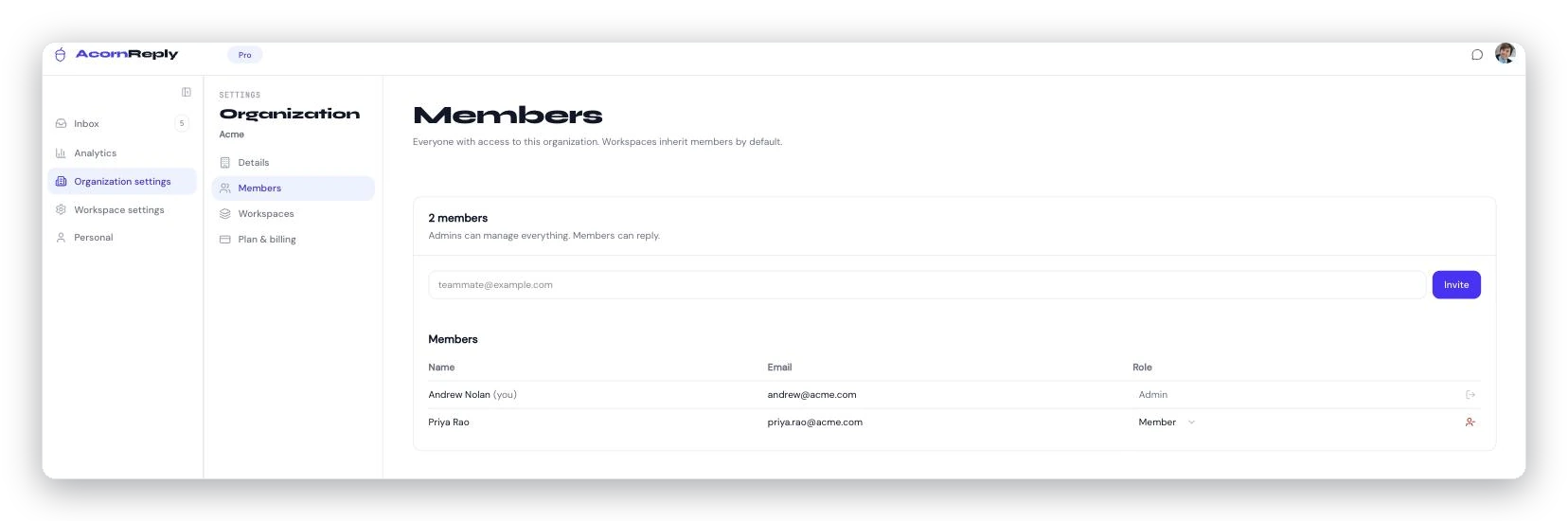
Settings → Members: invite teammates up top, and manage each person's role — admin or member — in the list below.
Inviting a teammate
Go to Settings → Members → Invite teammate, enter their email, and send. They get a magic-link invite by email — one click and they're in, no password required to start. Invitations you've sent but that haven't been accepted yet show up on the same page.
Roles: admin and member
Everyone joins as a member. You can promote someone to admin from Settings → Members after they accept.
- Members focus on the inbox: read conversations, edit drafts, and send replies. This is the right role for most of your team.
- Admins can do all of that plus manage billing, members, and workspace settings like the name, voice, and embed snippets.
Both roles see every conversation in the workspaces they belong to — roles are about who can change settings, not who can access the inbox.
Organizations and workspaces
Two ideas shape how your team is structured:
- An organization owns billing and membership — usually one per company.
- A workspace is a single inbox inside that organization. Teams running more than one brand or product can spin up additional workspaces, each with its own channels, voice, and knowledge base.
Members belong at the organization level and, by default, can work across its workspaces — so adding a teammate once gives them access to the inboxes they need.
Working a shared inbox smoothly
Because everyone sees everything, AcornReply uses assignment to keep people from stepping on each other:
- Replying to a conversation automatically claims it for you.
- A returning customer's message goes to whoever last helped them.
- The Mine filter at the top of the inbox shows just your assignments.
And when you need to compare notes on a tricky thread, add an internal note to the conversation — it's visible to your team but never sent to the customer.
Flat pricing as you grow
Plans are a flat monthly price — never per seat. Add teammates and spin up more workspaces without your bill going up.