
Reading the Channels report
On this page
The Channels page is the second half of your analytics, and it answers a different question from the Overview. Where the Overview tells the story of how conversations end, Channels tells you where they come from — and how each source performs. Open it from Analytics → Channels.
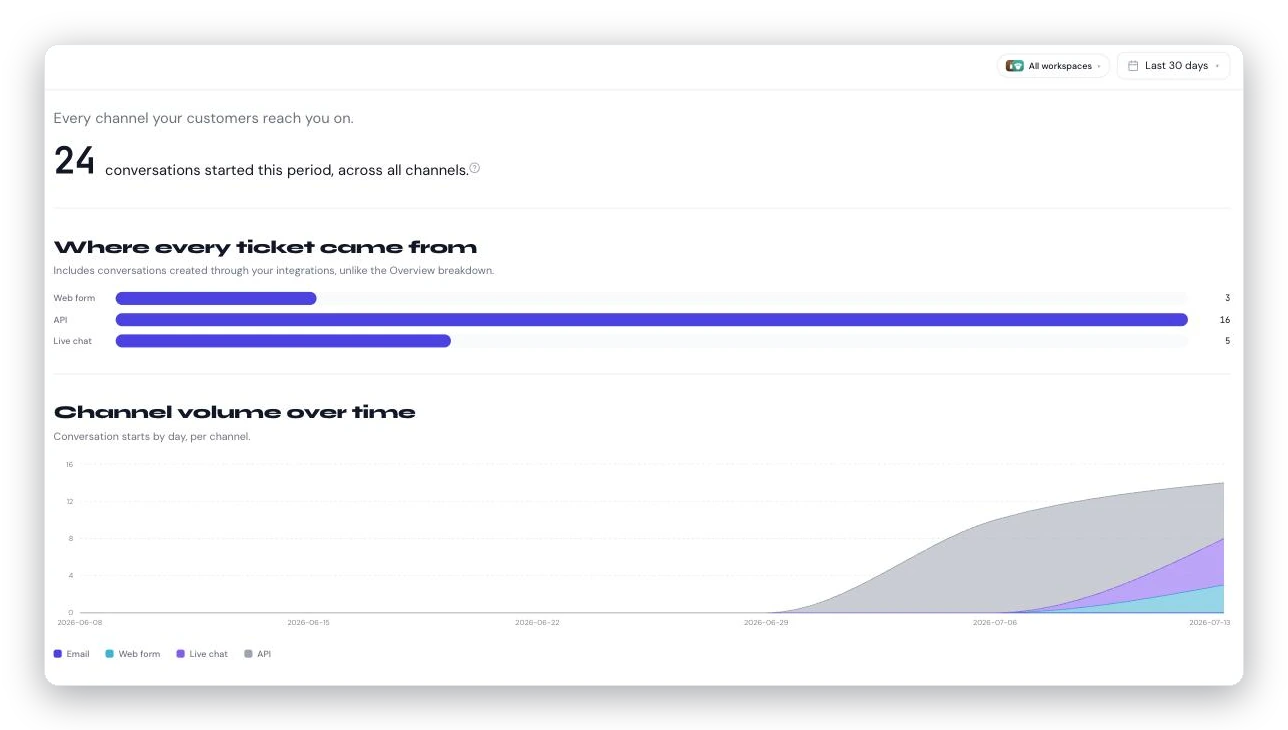
The Channels page: where every conversation came from, broken out by channel, with volume plotted over time.
What it shows
- Total conversations started in the window, across every source.
- Volume by channel — a bar for each of your channels so you can see, at a glance, whether most of your load is email, your contact form, live chat, or the API.
- A channel trend over time — the same volume, plotted across the date range, so you can spot a channel that's growing or a spike on a particular day.
- A per-channel outcome split — the same four outcomes from the Overview (AI resolved, self-served, needed a human, still open), but broken out for each channel. This is the most useful part: it shows you which channels the AI actually covers well and which lean on your team.
- A per-workspace comparison when you've scoped to more than one workspace.
The one big difference from the Overview
The Overview deliberately leaves out conversations created through the API, to keep your headline AI-handled rate focused on real, human-facing channels. The Channels page includes API traffic on purpose — its whole job is to show you every source. So if the totals here look higher than the Overview's, API volume is usually the reason.
How to read it
- Compare outcome splits across channels. If email is 70% AI-handled but live chat is only 30%, chat is getting a kind of question your knowledge base doesn't answer well yet. That's a pointer to specific articles to write — see Turn your analytics into a better knowledge base.
- Watch the trend for shifts. A channel climbing fast might need more coverage; a channel that's gone quiet might mean a broken embed or a changed link.
- Use the workspace comparison to see whether one brand's channels behave differently from another's.
The same controls apply
Just like the Overview, the Channels page respects the workspace scope and date range you picked at the top — and your choices carry over as you move between the two pages.