
Your daily support workflow
On this page
Once you're set up, the day-to-day rhythm of AcornReply is simple: triage what's new, open a conversation, edit the AI's draft, and send. Here's the loop most teams settle into.
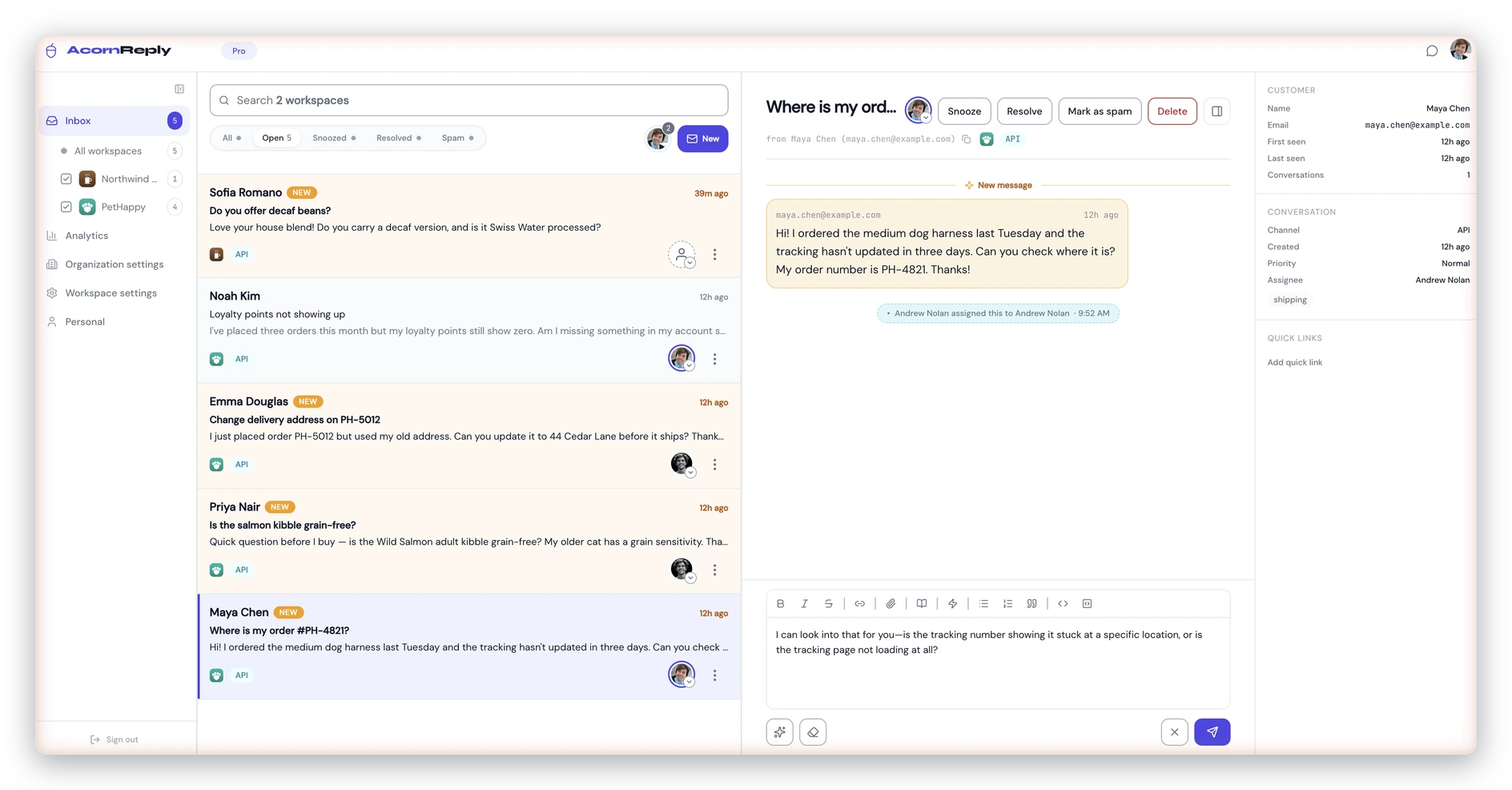
The daily loop — triage the queue, open a conversation, edit the AI draft, and send. Nothing sends until you press Send.
Triage with the status tabs
The top of your inbox has tabs that sort every conversation by state:
- Open — your active work, and where you'll spend most of your time. This is the default.
- Snoozed — set aside until a time you chose, or until the customer replies.
- Resolved — done and out of the way.
- Spam — filtered out; recover anything misfiled with Not spam.
- All — everything, across every state.
Each tab shows a live count, so you can see at a glance what's waiting.
Focus on what's yours
Every conversation can be assigned to one teammate. The Mine filter narrows the list to just your assignments. You don't have to assign things manually to stay organized:
- When you reply, the conversation is automatically claimed for you.
- When a returning customer writes in, it goes to whoever last helped them, so the same person stays on the thread.
Everyone can still see every conversation — assignment is about who's on it, not who's allowed in it.
Open, edit, send
Open a conversation and you'll usually find an AI draft already waiting, built from your knowledge base and your chosen voice. From here you can:
- Edit it directly — tighten the wording, add a detail, make it yours.
- Regenerate a fresh draft, or clear it and write from scratch.
- Polish rough notes — jot down the gist and let the AI expand it into a full reply.
Check the sources panel to see which knowledge-base entries the draft leaned on. When it's right, press Send (or ⌘/Ctrl + Enter). Nothing sends until you do.
Close the loop
After you reply, tidy up:
- Resolve conversations that are done. If the customer writes back, it reopens automatically.
- Snooze ones you're waiting on — pick Later today, Tomorrow, or Next week. It disappears until then, or until the customer replies.
Find anything fast
Press / anywhere in the inbox to jump to search. It looks across customer names, subjects, and the full text of every message in a thread — not just the latest one. The active tab scopes your results, so switch to All to search everything.
On your phone
The inbox is a PWA — add it to your home screen and it opens full-screen like a native app. On a conversation row, swipe right to snooze and swipe left to resolve.