
Choosing and switching your reply voice
On this page
Your reply voice is the tone the AI writes every draft in. Setting it once keeps your replies sounding consistent, no matter which teammate is on shift or how many drafts the AI produces.
The three voices
AcornReply gives you a small, curated set of built-in voices — chosen because they cover the tones most support teams actually want:
- Friendly (the default) — warm and personable, good for consumer products and everyday support.
- Direct — brief and to the point, for teams that value speed and clarity over small talk.
- Technical — precise and detailed, suited to developer tools and technical products.
The voice shapes wording and tone, but never the facts — those always come from your knowledge base.
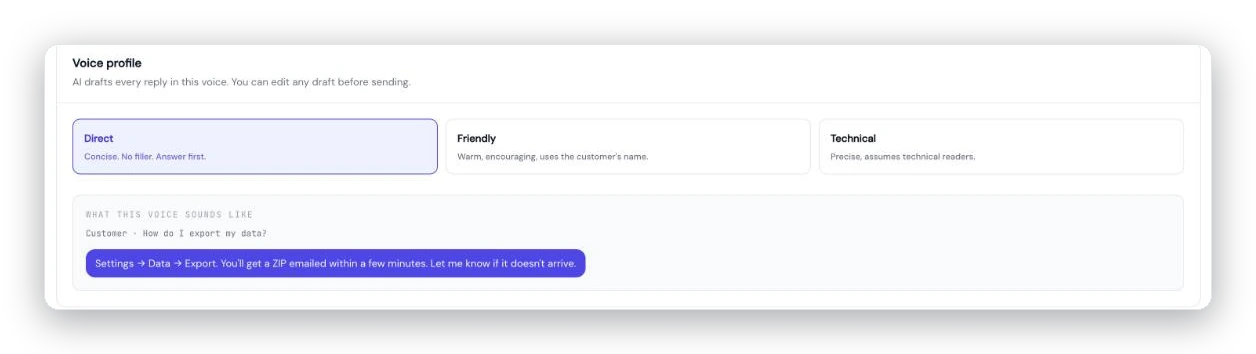
The Voice profile card in Settings → Workspace: pick Direct, Friendly, or Technical, with a live sample of how each one sounds.
Setting it
You first pick a voice during onboarding. To change it later, go to Settings → Workspace and choose a different one from the Voice profile card. The new voice applies to drafts generated from then on, so you can experiment and see what fits.
Voice is set per workspace, so if you run more than one brand, each can have its own tone.
Voice vs. reply language
Voice is about tone; your reply language is a separate setting (also under Settings → Workspace) that controls the language drafts and replies are written in. If a customer writes in a different language, AcornReply can translate for you — see Replying to customers in other languages.
A note on what you can change
The three voices are a fixed set — you choose among them rather than writing your own from scratch. If none feels exactly right, the closest voice plus a strong, well-written knowledge base will get your drafts most of the way there, and you can always edit any draft before sending.