
How AcornReply drafts replies
On this page
The heart of AcornReply is a simple idea: the AI does the first draft, a person does the final send. You stay in control of every reply, and the AI saves you the blank-page problem. Here's how it works.
A draft, not an autopilot
When a customer message arrives, AcornReply automatically writes a draft reply and drops it into the conversation, ready for you to review. By default, nothing is sent until a human reads it and presses Send. There's no autonomous reply happening behind your back.
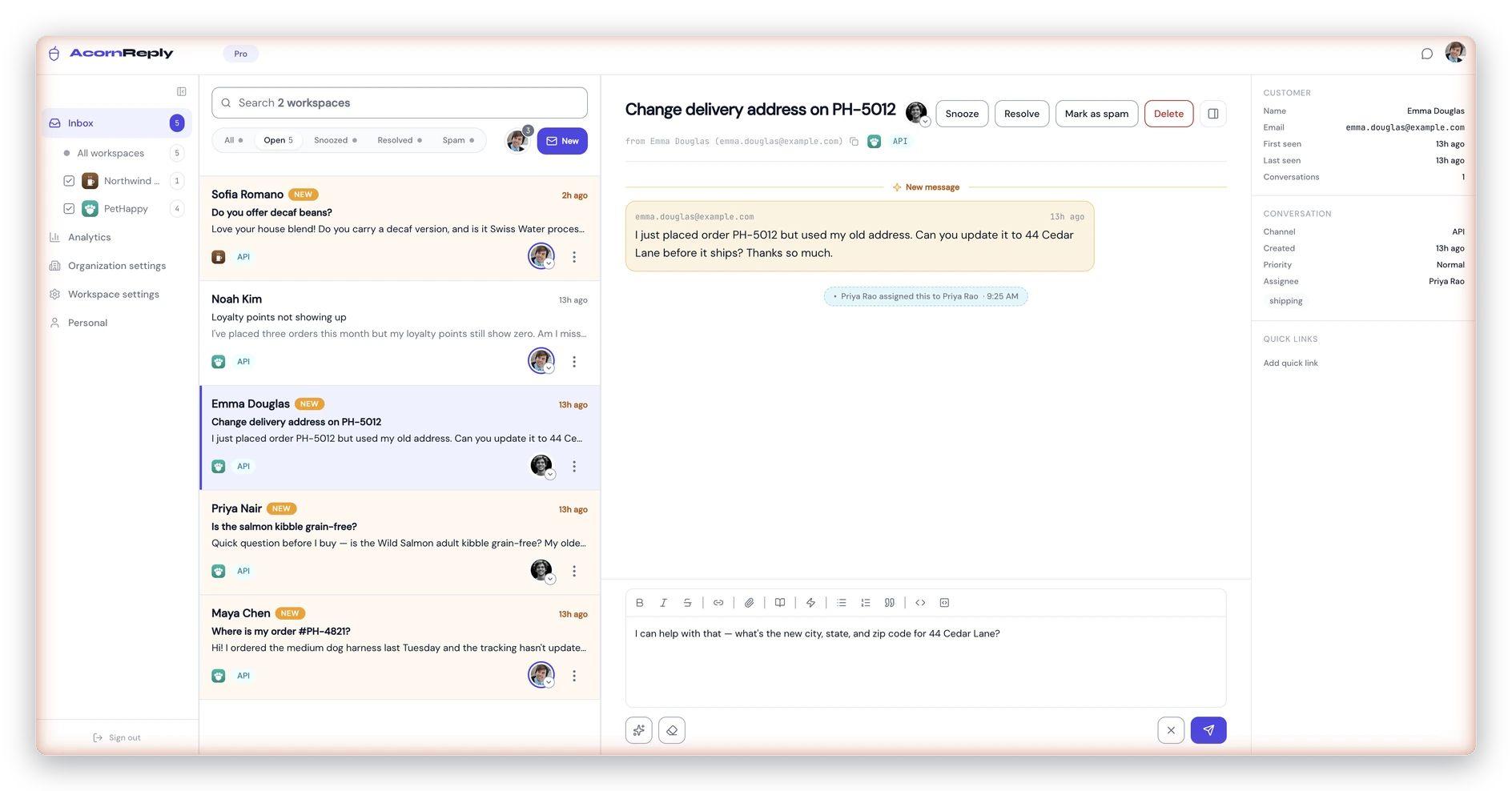
An incoming message with its AI draft waiting in the composer — yours to edit, regenerate, or clear before you press Send.
Grounded in your knowledge base
The AI doesn't invent answers. Before it writes, it searches your published knowledge base — your FAQs and articles — for the entries most relevant to the customer's question. Then:
- If it finds good matches, it drafts a reply based on them and cites the sources it used, so you can check its work.
- If it finds nothing relevant, it won't guess. It drafts a short reply that asks the customer for the detail it needs, rather than making something up.
This is why building out your knowledge base pays off directly — the more it knows, the better every draft gets. See Build a knowledge base that makes the AI smarter.
Written in your voice
Every draft is written in the reply voice you chose for the workspace — Friendly, Direct, or Technical — so the tone stays consistent no matter who's on shift. Change it any time in Settings → Workspace.
You're always in the driver's seat
Open a conversation and the draft is fully yours to shape:
- Edit it directly in the composer.
- Regenerate for a fresh take.
- Clear it and write from scratch.
- Polish — type rough notes and let the AI expand them into a polished reply, with an undo if you don't like it.
- Review the sources panel to see exactly which knowledge-base entries the draft drew on — and open one to fix it on the spot if it's out of date.
When it reads right, hit Send.
Different languages, handled
If a customer writes in a language other than your workspace's reply language, AcornReply can show you the original alongside a translation, and offer a translate & send option so you can reply naturally in your own language. See Replying to customers in other languages.
If you want more automation
Human-review-every-reply is the default, and it's the right fit for most small teams. If you'd rather have the AI do more, Settings → AI assist lets you choose how much it handles — including suggesting help articles to customers before they write in, or replying on its own. It's off by default, so you decide the level of automation that suits you. See Let the AI reply on its own: auto-reply and AI assist modes.