
Set up AcornReply in 10 minutes
On this page
AcornReply is a shared support inbox where AI drafts a reply and a human sends it. Getting started takes about ten minutes — most of that is deciding where your customer messages should come from. Here's the whole path.
1. Create your account
Sign up with your email and a password, with Google, or with a one-time code sent to your inbox. However you sign up, the same email always means the same account — so you can switch methods later without creating a duplicate.
2. Name your workspace
A workspace is one inbox for one product or brand. Give it a name and pick a slug — a short, URL-friendly handle. That slug does double duty: it becomes both your inbound email address and your public contact page, so choose something you're happy to share.
Running more than one brand? You can add more workspaces later; each gets its own inbox, voice, and channels.
3. Pick a reply voice
Choose the tone the AI writes in — Friendly, Direct, or Technical. This shapes every draft, and you can change it any time in Settings → Workspace.
4. Connect a channel
Decide how customers will reach you. You have a few options, and you can add more later:
- Forward your support email. Point your existing support address (like
help@yourcompany.com) at the forwarding address AcornReply gives you. Nothing changes for your customers. - Share your contact page, or embed a contact form or live-chat button on your site with a single snippet.
How customers reach you covers each option in detail.
5. Add your branding (optional)
Enter your website URL and let AcornReply detect your logo and colors automatically, so your contact form, chat, and help center look like you from day one. You can fine-tune everything later in Settings → Branding.
6. See it in action
Load a couple of sample conversations to watch the AI draft a reply, so you know what to expect before real customers arrive.
You're in
That's it — you land in your inbox. When a message comes in, the AI drafts a reply grounded in your knowledge base, you review and edit it, and you hit Send. Nothing goes out on its own.
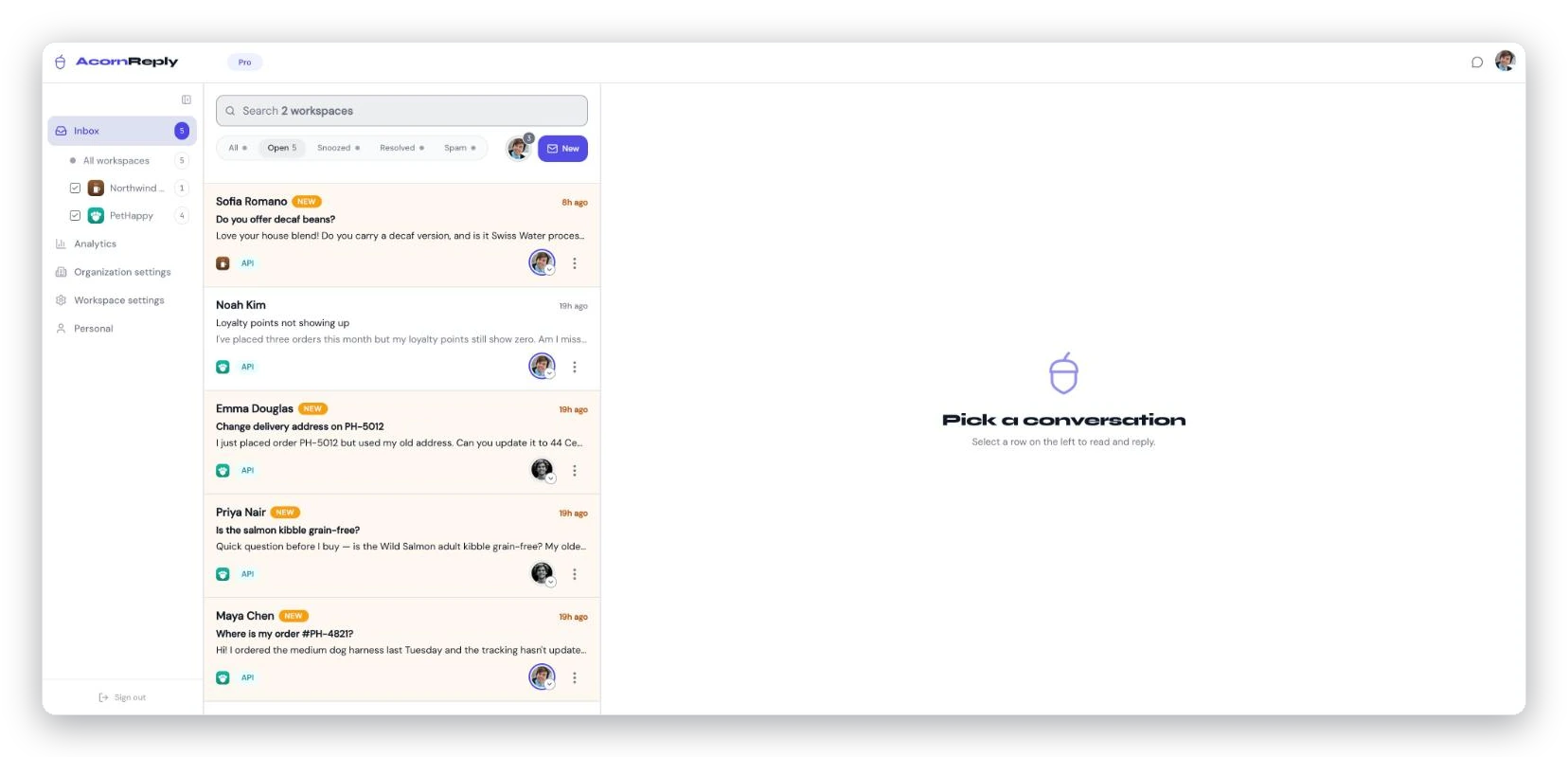
Once you're set up, this is home base: every message lands in one inbox, with an AI draft waiting on each.
Good next steps
- Build your knowledge base so the AI has real answers to draft from — see Build a knowledge base that makes the AI smarter.
- Invite your team in Settings → Members.
- Turn on notifications so you never miss a message.