
Live chat on your website
On this page
Live chat puts a real-time chat bubble on your website, so visitors can ask a question without leaving the page — and every chat streams straight into your inbox alongside your email conversations. Set it up from Settings → Channels.
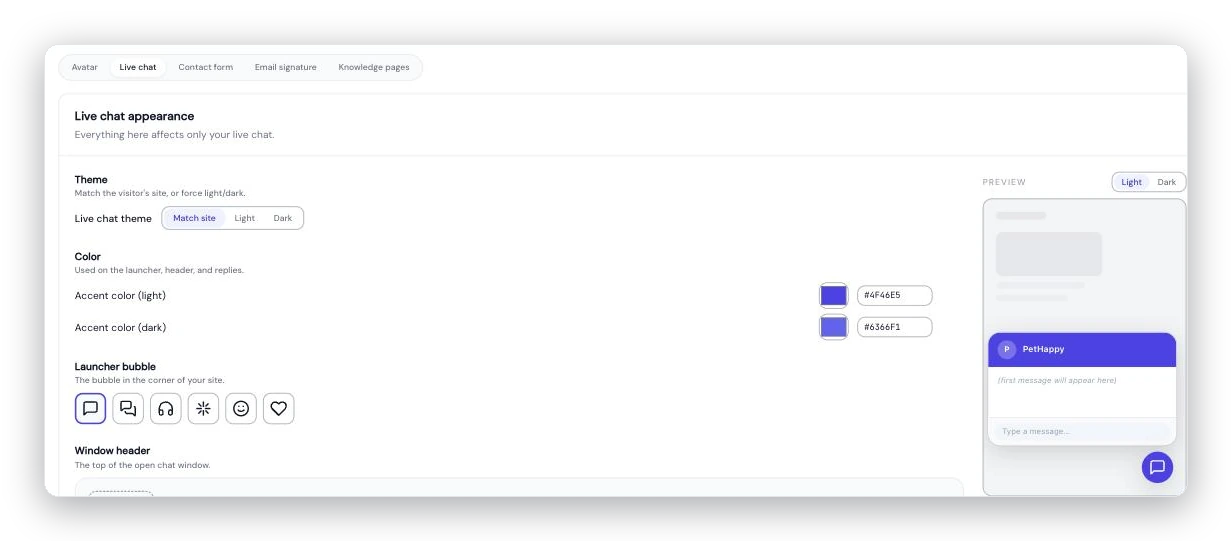
Style the chat widget to match your site — colors, launcher icon, and header — with a live preview of what visitors see.
Adding the chat bubble
Copy the live-chat <script> snippet from Settings → Channels and paste it into your site. A small chat bubble appears in the corner of every page; clicking it opens the chat in a slide-out panel. That's the whole install — one tag.
One inbox, no dropped threads
Chat conversations land in the same inbox as everything else, so your team works them the same way — assign, draft, reply, resolve. And chat doesn't strand anyone:
- If a visitor leaves before you reply, the conversation continues over email, so the thread isn't lost when they close the tab.
- The AI can draft (or, if you've enabled auto-reply, send) replies for chat just like it does for email.
Showing your team's status
You can optionally show visitors whether your team is online or away in the chat widget. Turn on the status indicator under Settings → Channels → Live chat. When it's on, the widget reflects your team's availability (each teammate sets their own — see Setting your availability and hours). Leave it off and no status is shown.
Styling the widget
Match the chat widget to your brand under Settings → Appearance (the chat tab) — header logo, colors, and how it renders in light or dark mode. Brand detection can set sensible defaults automatically; see Brand your contact form, chat, and help center.
Chat vs. the contact form
Both are website channels, and they share the same embed system, so pick what fits:
- Live chat is best when you want real-time, back-and-forth conversations and can staff them (with AI or the email fallback covering the gaps).
- The contact form is better for "leave us a message" when you don't need to be live.
You can run both, and everything lands in the same inbox. See How customers reach you for the full set of channels.