
The reply editor: write, format, and send
On this page
The reply editor is where you turn a draft into a sent reply. Open a conversation and you'll usually find an AI draft already waiting, built from your knowledge base and your chosen voice. You edit it, make it yours, and send — and nothing goes to the customer until you press Send.
This article is a tour of everything the editor can do.
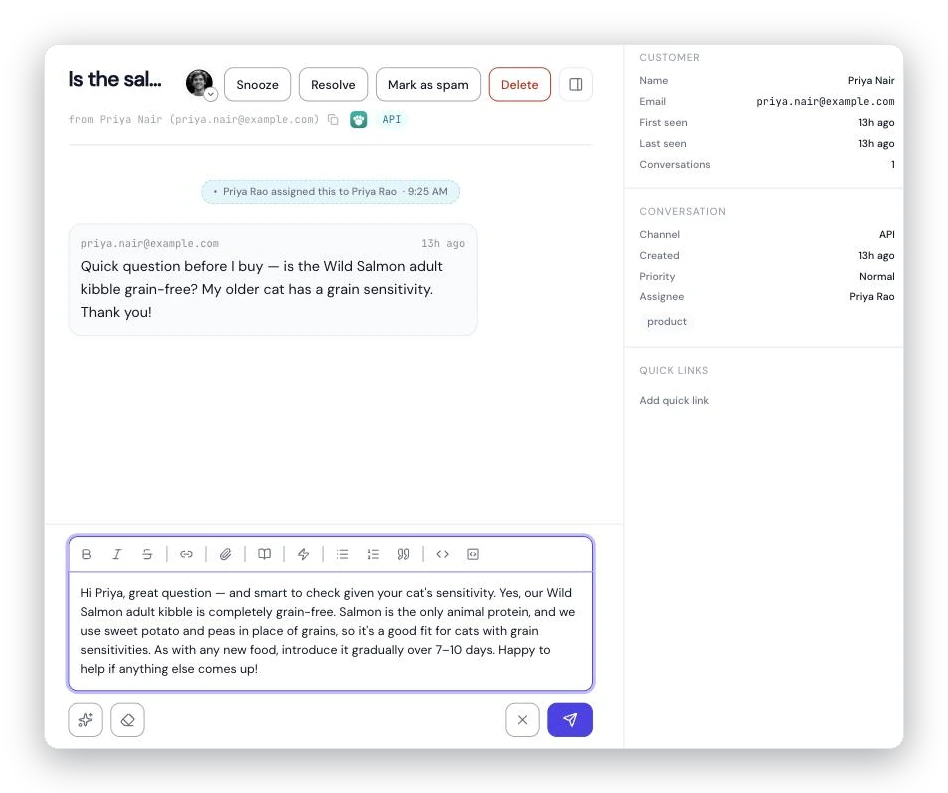
The reply editor: edit the draft, format it, and send. Polish, shortcuts, help-article links, and attachments all live in the toolbar and the action bar beneath it.
Start a reply
Under the conversation you'll see one of a few things:
- A draft waiting — the AI has already written a reply. Edit it directly, or use the toolbar to Regenerate a fresh one, Clear draft to empty the box and write from scratch, or Discard draft to throw it away.
- No draft yet — press Reply to start one, or Note to jot an internal note instead.
You're never locked into the AI's wording. Type over it, trim it, or start blank — whatever gets the customer the right answer.
Format your reply
The formatting toolbar gives you a focused set of rich-text tools, each with a keyboard shortcut (shown as ⌘ on Mac, Ctrl elsewhere):
- Bold (⌘B), Italic (⌘I), and Strikethrough (⌘⇧S)
- Bulleted list (⌘⇧8) and Numbered list (⌘⇧7)
- Blockquote (⌘⇧B)
- Inline code (⌘E) and Code block (⌘⌥C)
- Insert or edit link — opens a dialog that accepts
https://,http://,mailto:, ortel:links. Leave the field blank to remove a link. Links you type are turned into links automatically.
On a phone the toolbar is tucked away to save room — tap the ⋮ Formatting button in the action bar to reveal it.
Turn rough notes into a full reply with Polish
Don't feel like writing the whole thing? Jot the gist — a few bullet points or a rough sentence — and press Polish (the sparkles icon). The AI expands your notes into a complete reply in your voice. You'll see an Expanded from your notes strip with an Undo link if you'd rather have your original text back.
Polish rewrites what's already in the box, so it's perfect for "I know what to say, I just don't want to type it all out."
Drop in a saved reply
For answers you send again and again, message shortcuts save you from retyping. Two ways to insert one:
- Type
!in the editor and start typing the keyword — a menu filters as you go. Pick one to drop in its text. - Or click the Insert shortcut button (the lightning icon) and search.
Shortcuts can carry placeholders like {customer.name} and {agent.name} that fill in automatically when you insert them, so a greeting comes out personalized every time.
Link to a help article
Click Insert help article (the book icon) to search your help center and drop an article in as a link. If you've selected some text first, that text becomes the link; otherwise the article's title is inserted. It's the quickest way to point a customer at a fuller answer.
Attach files
Add files to a reply three ways: click Attach files (the paperclip), paste an image straight into the editor, or drag a file onto it. A tray shows each file and a running size meter.
A few limits keep things deliverable:
- All attachments on one reply share a budget of about 6.4 MB. Go over and the editor asks you to remove a file before sending.
- A handful of executable file types (like
.exeand.js) are blocked for safety. - Attachments aren't available on live chat conversations — the chat widget can't display them.
Send
When the reply looks right, press Send (the paper-plane button) or use ⌘Enter / Ctrl+Enter. Send stays disabled while attachments are still uploading, when they're over the size limit, or on demo conversations (where a note reminds you the message won't actually be delivered).
If the customer writes a language different from your reply language, the Send button becomes Translate & send — it translates your reply on the way out. The caret next to it lets you preview the translation or send your original untranslated. See replying in other languages for the details.
When the editor is locked
Some states intentionally close the editor so you don't reply by accident:
- Resolved — the box is replaced with a note and a Reopen button. Reopen to reply again. (A resolved conversation reopens on its own if the customer writes back.)
- Spam — marked as spam; use Un-spam to reply. See handling spam.
You can still add an internal note in either state. More on states in open, snoozed, and resolved.
See where the draft came from
Just above the editor, a Drafted using row shows the knowledge-base sources the AI leaned on for this draft. Tap a source to expand it and read the exact passage it used, mark it verified, or jump in to edit it. It's a fast way to sanity-check an answer before you send it — and to spot knowledge that needs fixing. Learn more in how AcornReply drafts replies.
Add an internal note instead
Notes use the same editor but are never sent to the customer — they're for your team. Press Note to open one; it's tinted amber so you always know it won't go out. You can @mention a teammate to loop them in, and the same formatting, shortcuts, and attachments are all available. Press ⌘Enter / Ctrl+Enter to post it. Full details in internal notes.